How to Enable IntelliSense for Unity Projects in VS Code
December 5, 2025 | A step-by-step guide to setting up IntelliSense for Unity development in VS Code, including required plugins installation, Unity configuration, and troubleshooting .NET SDK issues.
Though Unity uses Visual Studio as its default IDE, I still prefer VS Code. It's my everyday editor for programming. But there wasn't any IntelliSense from the first day I started using it with my Unity project, and I had been writing code without IntelliSense for quite some time. I can write code, though, but it's not comfortable. I even need to search on Google for some basic attributes of GameObject or so.
Today, after some searching, I've figured out how to bring IntelliSense for Unity projects into VS Code, so you can write code just like in Visual Studio.
Prepare the Plugins
You should first install these plugins:
C#
C# Dev Kit
Unity

Configure Unity
After installing the plugins, we're halfway there.
Firstly, open one of your Unity projects, find Edit > Preferences > External Tools. Then, you can find an option called External Script Editor, exactly the first option on my Unity. Click the dropdown. Click Browse.... Go to the path where your VS Code is installed and select the VS Code executable file.

Secondly, uncheck all the options in the section named Generate .csproj files for:, just like the image below. Then, click the Regenerate project files button. You will find some new files generated in the project folder, like .sln, .csproj, etc.
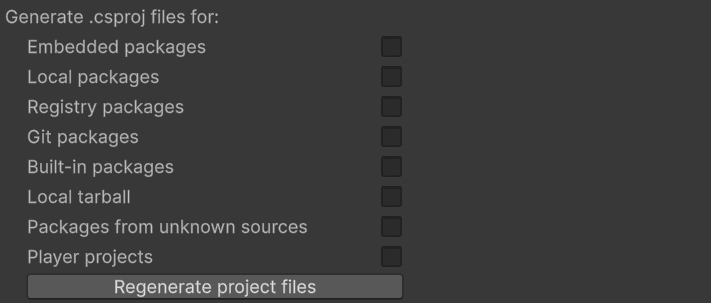
Finally, close VS Code and reopen it. Or open the Command Palette (the shortcut is Ctrl + Shift + P on my VS Code) and run Developer: Reload Window. Wait patiently until all the resources complete loading. Now, you can try writing code to see if there is IntelliSense.
If you encounter "No required version of a NET SDK was found"
If C# Dev Kit shows you a message saying "No required version of a NET SDK was found", like in the image below:
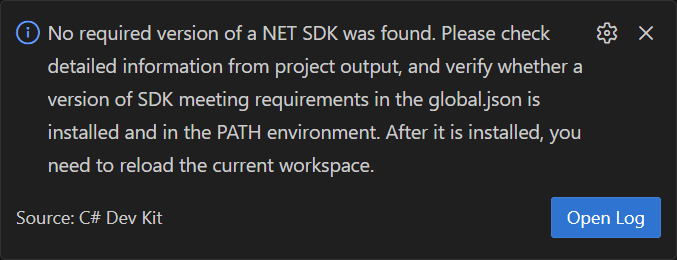
Run dotnet --info. In the .NET SDKs installed: section, you'll see your installed .NET SDKs.
Unity doesn't provide a complete .NET SDK for development, so you need to install it yourself. The output of dotnet --info includes a link to the SDKs download page. Go there, download an SDK, and install it. After installation completes, close VS Code completely and reopen your Unity project with VS Code, and it should work.
The problem still exists
However, if you still see the "No required version of a NET SDK was found" message, you need to do a bit more.
Check if there are files under
C:\Program Files (x86)\dotnetIf so, delete them all. Make sure to backup the files first, or you can just move them away to try.
Then, open your project again to see if it works.
Reference
The Configure Unity section is from an online comment, which you can find here.
The The problem still exists section is from solid1 on Stack Overflow, available here.