Fixing 'Cannot find module or type declarations' for CSS imports in Next.js
February 14, 2026How to resolve TypeScript errors for CSS imports in Next.js layout files by configuring VS Code to use the project's TypeScript version instead of its built-in version.
TL;DR
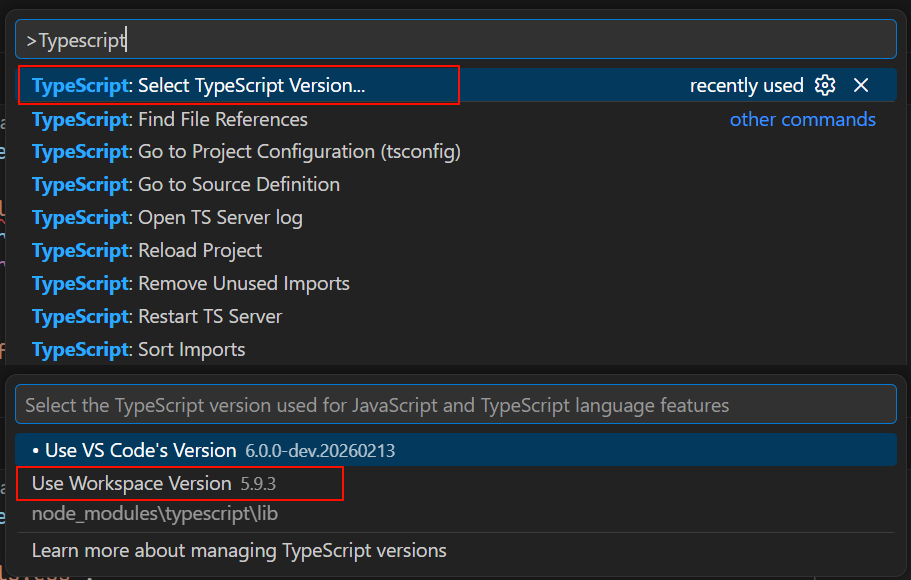
If you get Cannot find module or type declarations for side-effect import of './globals.css' in Next.js, open the command palette (Ctrl/⌘ + Shift + P), search for "TypeScript: Select TypeScript Version...", and select "Use Workspace Version".
Recently, I encountered a frustrating TypeScript error while working on a Next.js project. In my layout.tsx file, I got this error on the import statement:
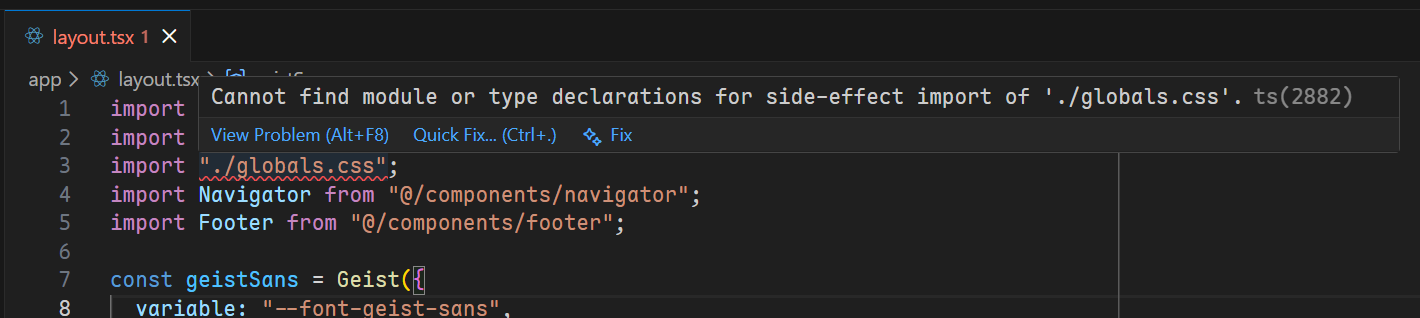
The application worked perfectly at runtime, but the red squiggly line in VS Code was annoying. Let me walk through how I found and fixed this issue.
Investigation
I started by searching for the error and found a helpful GitHub discussion in the Next.js repository.
In that discussion, @icyJoseph (a Next.js maintainer) provided a clear explanation:
Likely that your editor is not picking up the project's TS version, but the version it has built-in.
This was exactly the issue! VS Code was using its built-in TypeScript version instead of the TypeScript version installed in my Next.js project.
The Root Cause
Next.js projects use their own TypeScript version, which may include type definitions and configurations specific to Next.js (like how it handles CSS imports). When VS Code uses its built-in TypeScript version instead of the project's version, it doesn't have access to these Next.js-specific configurations, resulting in type errors for CSS imports.
The Solution
The solution is straightforward: configure VS Code to use the workspace (project) TypeScript version instead of its built-in version.
You can enable this by:
- Opening the command palette (
Ctrl/⌘+Shift+P) - Searching for "TypeScript: Select TypeScript Version"
- Selecting "Use Workspace Version"
Alternatively, you can follow the official Next.js documentation on TypeScript IDE Integration for more detailed setup instructions.
After switching to the workspace TypeScript version, the error immediately disappeared, and VS Code correctly recognized the CSS import.
Conclusion
If you encounter TypeScript errors in your Next.js project that seem incorrect or should work but don't, check which TypeScript version your editor is using. The built-in version may not have the necessary Next.js-specific configurations. Switching to the workspace version resolves most of these issues.
Reference
This solution was found in the Next.js GitHub discussion and verified against the official Next.js TypeScript documentation. The answer was provided by a comment of @icyJoseph.